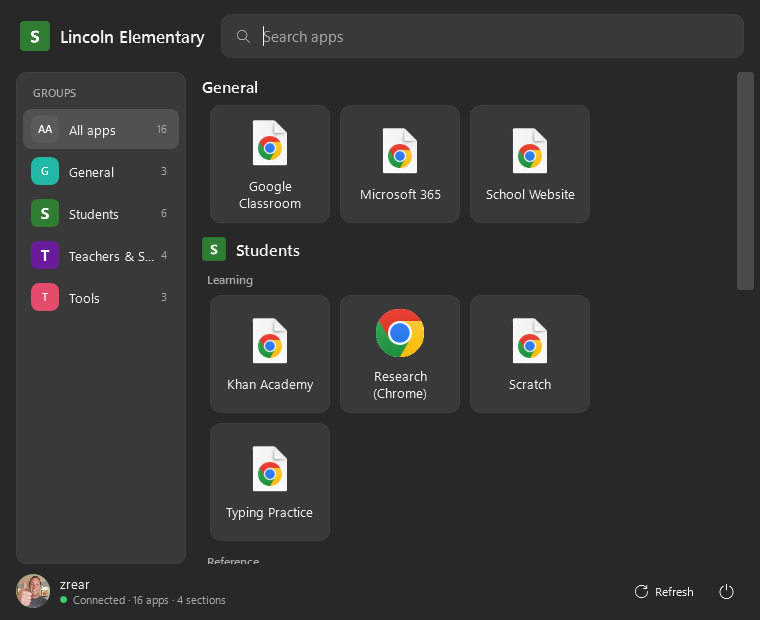
1Start replaces the Windows 11 Start menu with only the apps and links you choose. Lock it down for students, brand it for your school, and manage every PC from one policy file or the cloud console.
Free. One EXE, no .NET install needed. Windows 11 and Windows 10.
Drop shortcuts into a folder and they become the Start menu. A network share serves every PC; each user sees only the sections their account can read.
Sections are folders, groups are sub-folders, tiles are .lnk, .url, .rdp and .exe files. No packaging, no database.
The share is mirrored locally, only changed files are copied, and the menu keeps working when the server is down.
Put NTFS permissions on a section and only those users see it, even offline. One share serves the whole district.
The Win key and the Start button open 1Start. Exit it and Windows Start returns instantly. Nothing is injected into Explorer.
School name and logo in the header, your accent colour, your wording for the section list, your help-desk line.
Sidebar with app cards, Windows 11 style tiles, or the classic Windows 7 list. Pin one or let people choose.
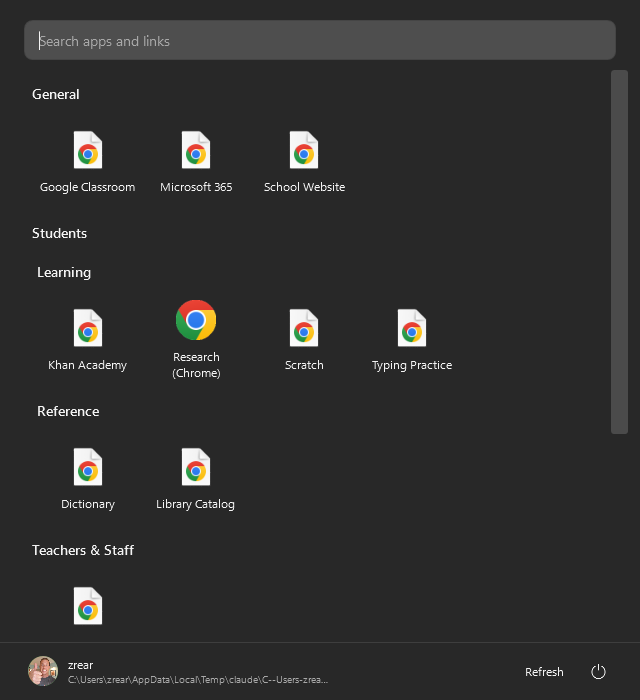
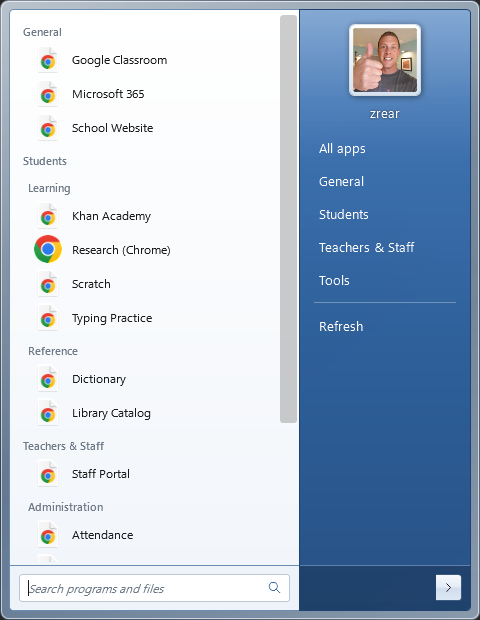
Every escape hatch is a switch. Turn them off for students, leave them on for staff with a rule.
1Start-Setup.exe /VERYSILENT ^
  /ORG="Lincoln Elementary" ^
  /LOGO="\\fs01\deploy\lincoln.png" ^
  /ACCENT=#2E7D32 ^
  /ROOT="\\fs01\StartMenu" ^
  /EXITCODE=3735 ^
/LOCKDOWNAll settings can be managed centrally without touching a single machine. Pick the source that fits your network.
Create an organisation at 1start.0101inc.com/console, edit the policy in a form, and hand each PC one URL. Devices check in so you can see who is on the current policy.
Drop a policy.json next to the shortcuts. Same format, no cloud. Cached on each PC so it applies offline.
Registry values under Software\Policies\0101\1Start win over everything. ADMX templates included.
Staff keep power actions, lab PCs get the Modern layout, kiosks hide the tray. Match on user, group or computer name.
Prefer to keep it all on-premises? 1Start Console is a self-hosted version of the same console that also manages the content folder, with a live preview of the menu. It ships with the download below.
Free for schools, non-profits and businesses. Self-contained EXEs, no runtime to install.
Installs for every user, starts at sign-in and relaunches if closed. Accepts silent-install parameters for SCCM and Intune.
1Start-Setup.exeCopy it anywhere and run it. No admin rights. "Start with Windows" is a checkbox in Settings.
1Start.exeSelf-hosted web console for the content folder, policy and devices. One EXE, runs as a service.
1StartConsole.exeADMX/ADML for the Central Store, plus a sample policy file.
1Start.admx 1Start.adml policy.example.jsonNo. 1Start runs as a normal app. It listens for the Win key and Start-button clicks and shows its own window. Nothing is written to the registry except the optional per-user "start with Windows" entry, and nothing is injected into explorer.exe. Close it and Windows Start is back.
With the lockdown switches on and an admin code set, the normal paths are closed and the logon task relaunches it if it is killed. Like any app, it cannot stop Task Manager or Win+R on its own; pair it with the usual Group Policy restrictions for those. The docs list exactly what it does and does not cover.
A folder. Locally, or a network share that every PC syncs from. Sections are folders, groups are sub-folders, and NTFS permissions decide who sees what. The on-premises console edits that folder in a browser; the cloud console manages settings and devices.
Only what the device sends when it checks in: computer name, signed-in username, 1Start version, layout, Windows version, app count, sync state, policy hash and the requesting IP address. No file names, no browsing, no personal data beyond the username. See the privacy note.
Yes. 1Start is built by 0101 Inc and is free to use. Support and hosted extras may come later.
 1Start